WordPress Custom Headers

wordpress-custom-headers

This post is about adding the custom header functionality to a WordPress theme. If you were looking for existing themes that support custom headers, I suggest you try the WordPress free themes directory.

Since version 2.1, WordPress has allowed custom headers to be added to themes. I don’t really have a use for it on my own blog, but I’d like to offer that functionality in the themes I release to the public. So last night I waded though some documentation and existing code to figure out just how it’s done. It’s actually pretty simple, so even if you don’t have much experience with WordPress theming, you should be able to follow along.

1. Define the header properties

First you need to tell WordPress a few things about your header. There are four things you should specify:

  1. Header image location (the path to the image)
  2. Header width
  3. Header height
  4. Text color

These definitions go in the function.php file in your WordPress theme. Here’s what it looks like:

define('HEADER_IMAGE', '%s/images/header.jpg');
define('HEADER_IMAGE_WIDTH', 960);
define('HEADER_IMAGE_HEIGHT', 150);
define('HEADER_TEXTCOLOR', '444444');

As you can see, I use a file called header.jpg and I keep it in a folder called images within my WordPress theme. You’re free to name your image something else if you prefer, or even put it in a different folder. You’ll want to leave the “%s/” as it is though, since it points to the location of your theme directory. The next two lines specify the width and height of the header image. WordPress will allow the user to crop any picture they upload to the dimensions you specify to make sure their images fit perfectly into your design. The last line is for setting the color of the header text. The user will have the option of changing colors or hiding text all together, so just set the color to whatever works best with your default background and rest assured that if they change the background, they can change the text to match.

2. Add some style

Now you need to create a function that will provide the styles associated with header image in your theme. All you’re really doing is wrapping some CSS in a PHP function like this:

function header_style() {
?>
<style type="text/css">
#header{
background: url(<?php header_image(); ?>)  no-repeat;
height: <?php echo HEADER_IMAGE_HEIGHT; ?>px;
width: <?php echo HEADER_IMAGE_WIDTH; ?>px;
}
#header h1 a{color:#<?php header_textcolor();?>;}
</style>
<?php
}

That’s the very minimum for styling the header. All it does is set the header styles you defined earlier. Notice the closing PHP tag before the styles start and the opening PHP tag after the style ends.

3. Admin styles

You’ve styled the header for the web site itself, but there’s a little bit more to do still. You see, WordPress allows the user to preview their changes in the admin panel, so you have to set some styles for that as well. You can use (almost) the same code as before, but make sure to add any code that you have in your regular style sheet that applies to the header so that they admin preview and the actual site display the same way. For example, the code for the theme I’m working on at the moment looks like this:

function admin_header_style() {
?>
<style type="text/css">
#headimg{
background:#ffffff url(<?php header_image() ?>) bottom center no-repeat;
height: <?php echo HEADER_IMAGE_HEIGHT; ?>px;
width: <?php echo HEADER_IMAGE_WIDTH; ?>px;
text-align:center;
text-transform:uppercase;
}
#headimg h1{font-size:2.5em; padding:25px 0 0 0; margin:0 0 15px 0;}
#headimg h1 a{border-bottom:1px solid #dddddd; color:#444444; text-decoration:none;}
#headimg p{color:#777777; font-size:1.2em;}
</style>
<?php
}

The most important thing to note is the function name. Make sure it’s different than the name of the first function. Other than that, just use the styles from the first function along with any header related styles you have in your stylesheet.

4. Add it to the theme

Finally, you need to alert the theme about all the work you just did, so it can use all that code you wrote:

if ( function_exists('add_custom_image_header') ) {
add_custom_image_header('header_style', 'admin_header_style');
} 

5. Test it out!

Now you can save your functions.php file and go to your WordPress admin panel. Go to Appearance>Custom Header and test your new creation!

If you have any questions or comments about the process, leave a note below.

WordPress Image Sizes

wordpress-image-sizes

By default, WordPress has four sizes that you can choose from when displaying your images. They are:

  1. Thumbnail (150×150)
  2. Medium (300×300)
  3. Large (1024×1024)
  4. Full Size (Whatever the image dimensions are)

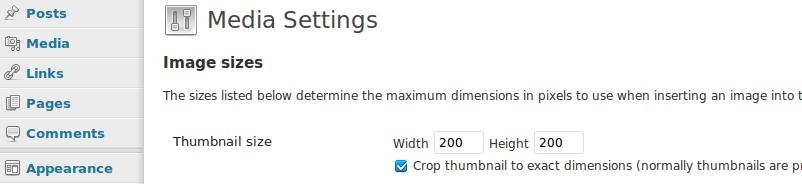
That’s great that they give us choices, but what if we want a diffent size? I really wanted my images to be the same width as my content, so I went searching for a way to easily do that. It just so happens that WordPress has an option in the admin panel for changing the default sizes. Just go to Settings>Media and you can adjust sizes to your hearts content. I set my large size at 560×1024 (560 being the width of my main content area). If you want your image to always match the width of your content, make sure you set Max Height significantly larger than Max Width. That will keep pictures that are longer vertically from being trimmed smaller than the content width. That’s all for now!

Fighting Blog Spam with Akismet

It’s been about a week and a half since I started this blog and I’m beginning to get spam comments as well as pingbacks from blogs that are just posting the first paragraph of my posts. Since I don’t want to have to moderate each individual comment, especially as the site grows, today I’m going to activate the Akismet spam filtering plugin that comes with WordPress. The Akisment plugin requires an API key from wordpress.com. As long as you’re not making more than $500/month from your personal blog, you can get an API key for free by signing up for a wordpress.com account.

1. Sign up at wordpress.com

If you don’t already have a wordpress.com account, you’ll need to go sign up. If you do, just skip to step two.

2. Retrieve your API key

Sign in to wordpress.com and click My Account>Edit Profile. Your API key will be listed at the top of the page. Copy the API key, you’ll need it in a minute.

3. Activate Akismet

Login to WordPress on your website (not wordpress.com) and click Plugins. Find Akisment and click Activate (it’s on the right). You will get a message at the top of the page saying “Akismet is almost ready. You must enter your WordPress.com API key for it to work.” Go ahead and click enter your WordPress.com API key.

4. Enter your API key

Enter the API key you copied earlier into the textbox. I also chose to to check the “Automatically discard spam comments on posts older than a month” checkbox as well. I don’t see a point in letting them take up space in the database. Click Update Options and you should get a message saying “Your key has been verified. Happy blogging!”

So… Happy blogging!

Changing WordPress Widgets

At the time of this writing, I’m using the Thematic Theme Framwork. I’m sure I’ll build my own theme for this blog in time, but for the moment I’m concentrating on other things. The Thematic Theme Framwork has 13 widget ready areas, which is more than plenty. I’m just going to rearrainge my sidebar today, so I’ll show you how it’s done.

1. Manage widgets

Log into WordPress and go to Appearance>Widgets. Mine looks something like this:

wordpress-widgets-1

On the left side is a list of all the available widgets. On the right side is a list of the widgets that are currently in use in the selected widget ready area.

2. Add and remove widgets

Use the drop down list at the top of the right side to select which widget ready area you want to add or remove widgets from. To add a new widget, find the one you want in the left hand column and click Add. To remove a widget that is already in use, find it in the right had column and click Edit and then Remove. Other aspects of the widget can also be changed in the Edit section.

3. Rearranging widgets

Finally, to rearrange the widgets that are currently in use, you can just drag-and-drop them into the order you prefer. It’s pretty handy. Have fun!

Installing WordPress in a Subdirectory

There are two reasons I like to install WordPress in its own folder, rather than the  root. First, I like to keep my root folder uncluttered. I don’t like a bunch of WordPress files that I’ll never be messing with getting in my way.  That’s just a matter of personal preference though. The second reason is for security. To prevent automated site scans from easily finding my WordPress files, I simply place them in a separate directory. So… here’s how you do it. It’s actually quite simple.

1. Install WordPress in a subdirectory

Just follow the instructions I gave in my post Installing WordPress Manually. Make sure you create a new directory and upload the WordPress installation files there (that’s step three in the post I just mentioned).

2. Edit the index.php file

Once WordPress is installed, download the index.php from the directory where you uploaded WordPress. You’ll need to open it up and make one small change. Find this piece of code:

/** Loads the WordPress Environment and Template */<br />
require('./wp-blog-header.php');

All you need to do is tell it how to find wp-blog-header.php in its new subdirectory. For example, here’s what the code would look like if I installed WordPress in a directory called example.

/** Loads the WordPress Environment and Template */<br />
require('./example/wp-blog-header.php');

Notice how I added /example just before /wp-blog-header.php. So just add the name of your directory in place of example and that’s all the code editing you have to do.

3. Upload the new index.php file

Now that you’ve made the necessary change to your index.php file, it’s time to upload it to your root directory. Make sure you delete the old index.php file in your WordPress directory.

4. Tell WordPress what you did

Finally, you need to let WordPress know about the change. First, log into WordPress. The login page will still be at the old URL (for example http://alexmansfield.com/example/wp-login.php not http://alexmansfield.com/wp-login.php). Go to Settings>General and change the Blog Address field (for example, from http://alexmansfield.com/example/ to http://alexmansfield.com/). Save your changes and that should do it!

If you have any questions, please ask them in the comments section below.

Changing Permalinks in WordPress

This will also be in my upcoming post on improving SEO in WordPress, but since I promised to write about everything I’m doing on this blog, I’ll make a separate post about it now. Permalink structure refers to the way URLs are formed within WordPress. For example, the default permalink structure in WordPress looks like this:

http://alexmansfield.com/?p=123

Not very pretty, useful, or search engine friendly. A human can’t read “?p=123″ and tell what the page is about and neither can a search engine. Thankfully, WordPress makes it easy to change the way your URLs look. Just login to WordPress and go to Settings>Permalinks. First, there are some built in options, such as:

http://alexmansfield.com/2009/06/sample-post/

These are an improvement over “?p=123″ but they’re still not that great. Very few people will include a date in their search, so the date is pretty much just wasting space in your URL. But you don’t have to settle for these built in options. WordPress also gives you the opportunity to specify your own permalink structure. Here’s what I use:

/%category%/%postname%

That displays the category that the post is assigned to, followed by the name of the post. Short and sweet. Unless of course, you use categories like “This-is-the-best-category-on-my-website-and-you-should-read-all-about-it.”

Do you have a different permalink structure that you prefer. Tell us why in the comments section!

How to Change the Tagline in WordPress

The default tagline “Just another WordPress weblog” is obviously not the description I would choose for my blog. Today I’m going to change it, and I’ll show you how to change yours as well.

1. Login

If you’re already logged in to WordPress, skip step 1 :-)

2. Change the tagline

You can change the tagline by going to Settings>General. Tagline is the second item on the page. Enter your new tagline and click Save Changes.

Easy enough? If not, comment below.

How to Install a WordPress Theme

Installing a New wordpress theme is quite simple. With very little effort, you can transform the look and feel of your blog. I started this blog less than a week ago and I’m definitely getting tired of looking at the default theme. Eventually I’ll create my own theme for this blog, but for now I’m focusing primarily on content, so I’ll just install a freely available theme. So as I download and install the new theme, I’m going to walk you through the steps I take. Here we go…

1. Download a theme

There are lots of places to find free WordPress themes. There are lots of free themes in the wordpress.org free themes directory. Smashing Apps has a list of 13 Premium-Like WordPress Themes That Are Free. Finally, Instant Shift has a huge list of 140+ Brilliant Free WordPress Themes. For this blog, I’m going to download the Thematic WordPress Theme from themeshaper.com. It is plain and simple, which is just what I’m looking for at the moment. Once you’ve found a theme that you like, download it to your computer and unzip it.

2. Upload the theme

Using your FTP client of choice, upload the theme folder to the /wp-content/themes directory on your server.

3. Activate the theme

Sign into WordPress and click Appearance link. You should see the theme that you just uploaded in the list of themes. Click the new theme and you will be presented with a preview. Click Activate in the top right corner and your blog should look brand new!

If you have any questions about installing themes, please post them in the comments below.

Installing WordPress Automatically

In my last post, I explained step by step how to install WordPress manually. However, not everyone is a web developer, so I figured I should mention that there are a few ways to use WordPress without installing it yourself. First, you could hire me to do it! But that isn’t really the point of this post. I’m going to explain two other ways to use WordPress without installing it yourself.

First, you can sign up for a free account at wordpress.com and they’ll set you up with everything you need to get started. However, there will be a number of limitations on what you can do. They provide you with a limited amount of space, allow a limited number of file types to be uploaded, and limit the ways you can embed external content such as videos from other sites. Customizing the look and feel of your site is also off limits under the free plan.

To get more control of your site, you can sign up for web hosting with a company that supports automatic WordPress installs. There are quite a number of web hosts that provide such a service and you are free to do as much research as you’d like. Personally, I prefer Dreamhost. They have one of the nicest control panels I’ve seen and they provide a one-click WordPress install. When a new version of WordPress comes out, they are quick to provide a simple upgrade option.

Here’s how easy it is to install WordPress at Dreamhost.

1. Sign up

Not much to say about this one. Just go to dreamhost.com and click sign up!

2. Login

Simply go to https://panel.dreamhost.com and enter your username and password.

3. Start the install

Click “Goodies” in the menu on the left, and then choose “One-Click Installs” from the sub-menu.

wordpress-auto-2

4. Choose a mode (easy or advanced)

Next you’ll be presented with this screen:

wordpress-auto-3

I would suggest choosing “Advanced Mode” since easy mode will result in many of the same limitations that we would have run into with a wordpress.com account. Don’t worry, advanced mode doesn’t take any advanced skills.

5. Finish the install

After choosing advanced mode, you will be presented with a number of options. You can accept the default answers for all of them. The only thing you need to do is choose a database name. You can enter pretty much whatever you’d like. It doesn’t really make any difference what you name your database. If you don’t have an existing hostname for your database, it will give you the option of creating one. That’s it! It’s that simple. Click the “Install it for me now!” button and you’re set.

If you have any questions or comments, please leave a note below.

Installing WordPress Manually

As promised, here is a step-by-step guide to installing WordPress manually.

1. Download WordPress

Go to http://wordpress.org/download/ and download WordPress.

installingwordpress-1

Click the “Download WordPress” button and save the .zip file to your computer. I personally use Linux, so I chose to download the more compressed .tar.gz file from the small link below the button, but for most people the .zip file is the better choice.

2. Extract the .zip or .tar.gz file

You downloaded a compressed folder of all the files needed to install WordPress. However, you need to extract/unzip the folder before you upload it to your server.

3. Upload the files to your web host using FTP

I assume that you’re familiar with how to do this. If not, you can watch this video tutorial about using FireFTP, a free addon for Firefox.

I like to keep my WordPress files in their own directory to keep them separate from the rest of my files. This is a matter of personal preference, so feel free to put them wherever you’d like.

Please note: WordPress will be installed in whatever folder it is uploaded to. That can be changed, but it is beyond the scope of this tutorial.

4. Create a database

Next you’ll need to set up a database for Worpress to use. The steps you’ll have to follow to accomplish this depend on who hosts your website. If you don’t know how to do this already, please contact your web host and ask them about it.

5. Create a configuration file

Once you’ve created your database, open your web browser and go to the folder where you uploaded WordPress. You should see a page similar to this:

installingwordpress-2

Click the “Create a Configuration File” button.

6. Database access

Next you’ll be greeted with this screen:

installingwordpress-3

Before moving on, you’ll need to know your database name, database username and password, and database host. If you have all the required information, click the “Let’s go!” button, which will take you to this page:

installingwordpress-4

Fill out the form with your specific information and click the “Submit” button.

7. Install WordPress

If everything went well, you should see this page:

installingwordpress-5

Click the “Run the install” button to continue.

8. One last thing

This is the last step before the WordPress installer runs.

installingwordpress-6

Here you need to enter your blog title, your email address, and choose whether or not you would like your blog to appear in search engines. Once that’s taken care of, click the “Install WordPress” button and that should do it. You will be presented with a page displaying your administrator username and password.

That’s all there is to a basic WordPress installation. However, there are a few more steps that should be taken to increase both security and functionality. In my next post I’ll detail the first steps I take after installing WordPress to make it more functional and more secure.

Newer Entries »